Docs · Set up your workspace
Invite your team and clients
Everyone you add to Emrg is free. Give each person a role that fits: your team gets on with the work, and clients see how it's going without changing anything.
Invite someone
- Open Settings › Team and choose Invite people.
- Enter their email address, pick a role, and choose Invite.
- Emrg emails them an invitation. You can also choose Copy invite link and send it yourself.
The link works for 7 days, and only for the address you invited: they sign in or sign up with that address to join. Owners and admins can invite people; only an owner can invite an admin.
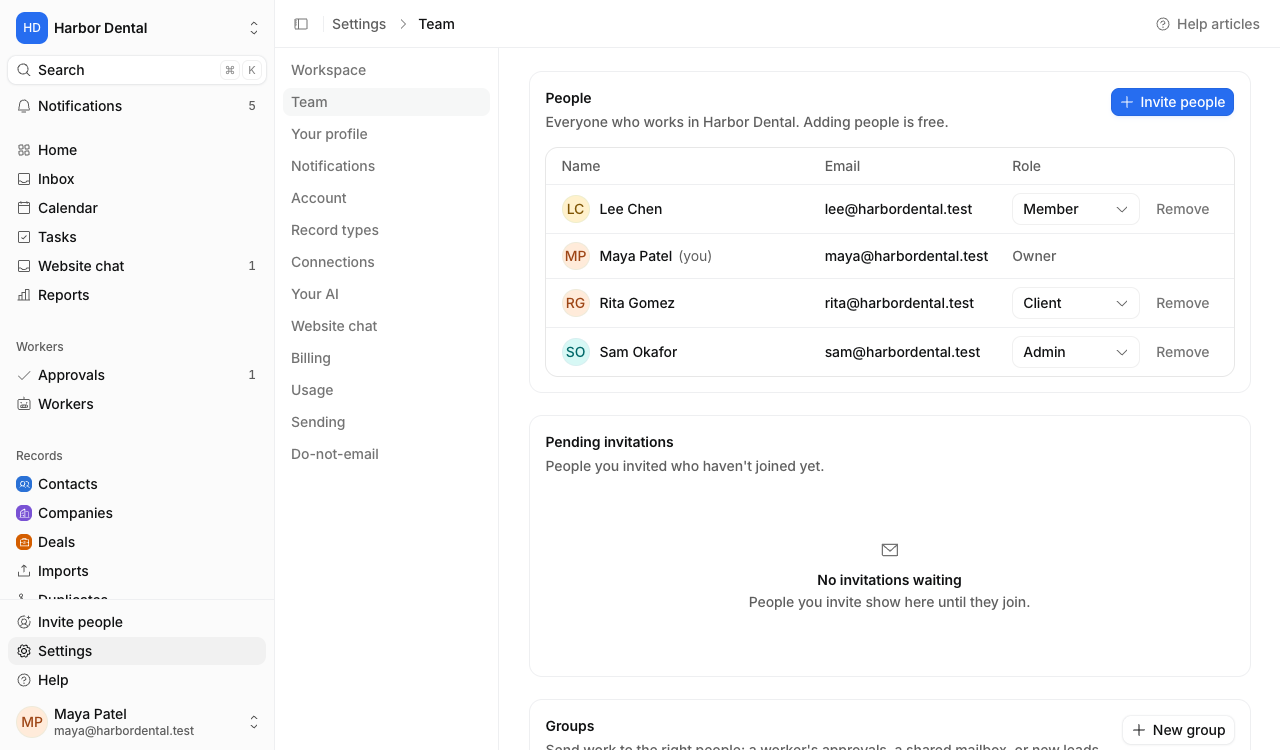
Under Pending invitations, Resend sends a fresh link (the old one stops working) and Withdraw cancels it.
What each role can do
- Owner: everything, including billing, downloading all the workspace's data, and deleting the workspace.
- Admin: everything except billing, downloading all the data and deleting the workspace. Admins manage the team, workers and sending settings.
- Member: works with contacts, companies, deals, the inbox and calendar, and decides on approvals. Members can also change forms, booking pages, website chat and sequences, and connect their own mailbox. They can't change the team, workers, sending settings or billing.
- Client: sees contacts, companies, deals and records, and can add notes, decide on approvals, reply to website chats and see files. Clients can't change records or read the inbox or calendar.
Anyone, whatever their role, can connect their own AI. It can only do what that person can.
Change a role or remove someone
In Settings › Team, use the role menu beside a person. Owners can change anyone's role except their own; admins can switch people between member and client.
Choose Remove to take someone out. They lose access straight away, and workers they hired are paused until someone turns them back on.
To hand the workspace to someone else, make them an owner first. A workspace always needs at least one owner, so the only owner can't be removed or made an admin.
Still stuck?
Email support@emrg.ai from the address you use for Emrg, with the name of your workspace, and a person will reply.