Docs · Set up your workspace
Connect your email and calendar
Connect the mailbox and calendar you use for work, so emails and meetings land on the right client and replies go out from your own address.
Connect your mailbox
Signing in to Emrg with Google doesn't give Emrg your mail or calendar. You connect those separately, in one step that covers both.
- During setup, on Connect email and calendar, choose Connect with Google. Later, you can do the same from Settings › Connections, with Connect Gmail. Outlook and Microsoft 365 are coming soon.
- For Google, Emrg first shows what it will do with your mail. Read it, then choose Agree and continue.
- Sign in at Google and keep every box ticked. If you untick one, Emrg asks you to connect again.
- Back in Emrg, the mailbox shows as connected. The calendar can say Setting up… for a minute or two while Emrg finds your calendars.
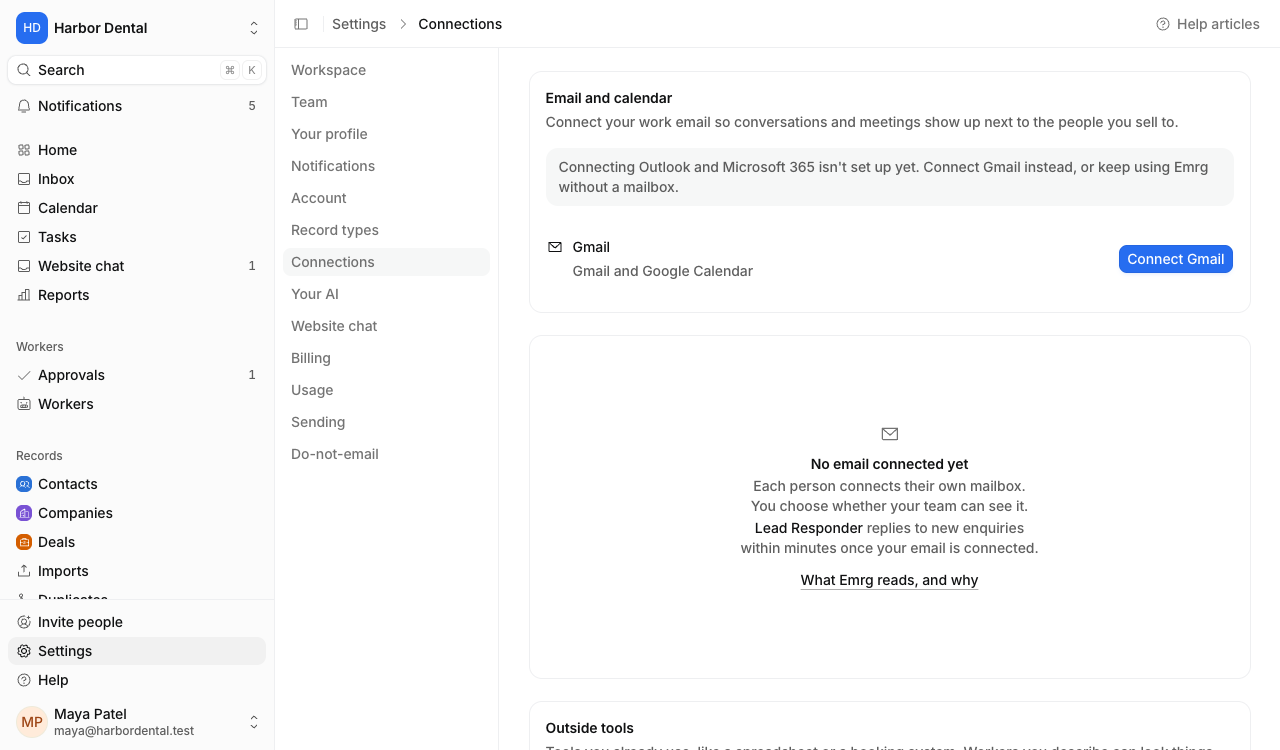
Early access. Google lets new apps connect a limited number of Gmail accounts until it has reviewed them. If Emrg says Google connections are full, keep using Emrg without a mailbox for now. Outlook and Microsoft 365 are coming soon.
What Emrg reads, and why
- Your email from the last 12 months (36 on a paid plan), and new email as it arrives. Emrg links each conversation to the people in it who are already your contacts, and their companies, so the history is on their records. You can link a conversation to a deal yourself.
- Your calendar's events. Meetings show on the right records, workers can prepare you for them, and your booking pages offer only times you're free.
- Attachments are copied into Emrg only when someone opens one.
Your workers use this to sort mail, draft replies, summarise threads and prepare meeting notes. Emrg uses one AI provider, Anthropic, to do this, and nobody uses your email to train AI models.
What Emrg changes and sends
- Read status. When you read an email in Emrg, it shows as read in Gmail too. Emrg doesn't file, label or delete your email.
- Email from your address. Replies you write in Emrg, and worker emails you approve, go out from your own mailbox, so they sit in your Sent folder as usual.
- Meetings people book. When someone books through one of your booking pages, Emrg adds the meeting to your calendar with them as a guest.
To protect your address, new mailboxes start slowly. Worker and sequence emails are limited to 20 a day at first, rising by 10 a day up to your daily limit. Replies you write yourself don't count towards it.
Choose which calendars count
Only your main calendar is used at first. To add others, open Settings › Connections, find Calendars, and turn on Show meetings or Block booking times for each one.
Who can see your mail
A mailbox you connect is private: only you can read it in Emrg. To let your team read and reply too, open Settings › Connections and, under Who can see this mailbox, choose Everyone on the team, or one of your groups to share it with just that group. Only you makes it private again. Only the person who connected a mailbox can change who sees it. Clients you invite can't read the inbox, shared or not.
If you connect Claude or ChatGPT, it sees the same mail you can: your own mailbox, plus any inbox shared with the team.
Disconnect or reconnect
In Settings › Connections, choose Disconnect. Emrg stops syncing and gives up its access. Tick Also delete the email and meetings already synced from it to remove them from Emrg as well; the contacts and deals they were linked to stay.
If a mailbox says Reconnect needed, Emrg has lost access, for example because access was removed at Google. The person who connected it can choose Reconnect and sign in again; nothing already synced is lost.
Still stuck?
Email support@emrg.ai from the address you use for Emrg, with the name of your workspace, and a person will reply.