Docs · Get work done
Connect Claude or ChatGPT
Ask Claude, ChatGPT or another AI app to look up a client, add a deal or clear your approvals. It works with your permissions, and connecting it is free on every plan.
Connect it
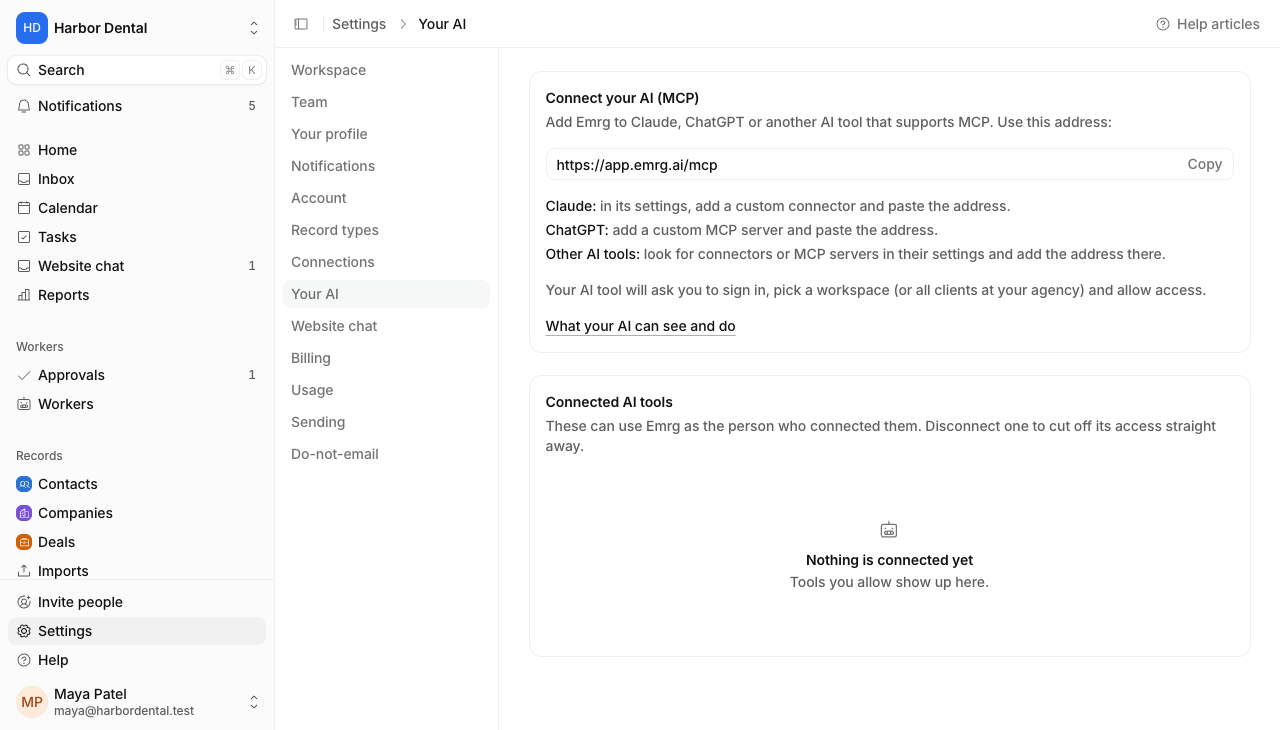
- In Emrg, open Settings › Your AI and choose Copy to copy your address. It's
https://app.emrg.ai/mcp. - Paste it into your AI app. In Claude, add a custom connector in its settings. In ChatGPT, add a custom MCP server. In other apps, look for connectors or MCP servers in their settings. These menus belong to each app and can depend on your plan with them.
- Your AI app opens Emrg's sign-in. Choose the workspace it may use, and Read and make changes or Read only. Tick All of Emrg's tools if you want it to set things up too, then Allow.
- Start a new chat and ask about your clients, deals or approvals.
Claude Code and Codex
Add Emrg from your terminal, then sign in the same way when it asks:
- Claude Code:
claude mcp add --transport http emrg https://app.emrg.ai/mcp, then run/mcpin Claude Code and choose Emrg to sign in. - Codex:
codex mcp add emrg --url https://app.emrg.ai/mcp, thencodex mcp login emrg.
Everyday tools, or all of them
Unless you tick All of Emrg's tools, your AI gets the everyday ones: contacts, companies, deals, notes, tasks, your inbox and calendar, and approvals. That keeps it quick and focused. With all of them it can also set things up: sequences, workers, forms, fields and lists. If it needs a tool it doesn't have, it asks you to connect again with more. Read only always stays read only.
An AI in your browser (preview)
Browsers that support WebMCP, at present Chrome and Edge in a trial, can let an AI built into the browser use Emrg while you have it open, with nothing to connect. It can search your records, open one, see what's due today, and add a note, a task, a contact or a company. Each change goes through the same checks as clicking the button yourself, and your browser can ask you before it's made. It can't send, delete or approve anything, and other websites can't reach it.
What your AI can see and do
- Only what you can. If you lose access to something, so does your AI. Anyone on your team, clients too, can connect their own.
- It can read your own email and calendar once you've connected them, plus any inbox you or a teammate shared with the team.
- It can do most of what you do in Emrg. Erasing a person is one exception: that's only done in Emrg itself.
- If it wants to delete something, a person approves that in Emrg first.
- Approvals open as cards in the chat, where you can approve or reject. To edit a draft, open it in Emrg. If your AI asked for the change itself, you decide on it in Emrg.
- Changes it makes are logged on the record as made through your AI, under your name.
Connecting is free. Anything that uses credits in Emrg, like a worker's job, uses the same credits when your AI asks for it.
Disconnect it
In Settings › Your AI, choose Disconnect beside the app. It loses access straight away. Signing out of Emrg doesn't disconnect it.
Building your own integration? See the API and MCP overview.
Still stuck?
Email support@emrg.ai from the address you use for Emrg, with the name of your workspace, and a person will reply.