Docs · Set up your workspace
Import your contacts
Bring your contacts, companies and deals into Emrg from a spreadsheet. Moving from another CRM works the same way: export a CSV there, then import it here.
Get your file ready
- A CSV or Excel (.xlsx) file, up to 20 MB, with one person (or company, or deal) per row and a header row. Older .xls files need saving as .xlsx or CSV first.
- Up to 50,000 rows in one import. Split bigger lists into several files.
- An email column helps most: it's how Emrg spots people who are already in your contacts.
Coming from HubSpot, Pipedrive or Attio
Importing straight from another CRM isn't available yet. Instead, export from your old CRM and import the files here. HubSpot, Pipedrive and Attio can each export a list of people as a CSV file; their own help pages show where the export option is.
Export companies and deals too if you want them, and import each file into its own record type: people as contacts, then companies, then deals.
Import it
- Open Imports under Records in the sidebar and choose Import data.
- Choose A spreadsheet, pick the kind of record, and choose your file. The file is read in your browser.
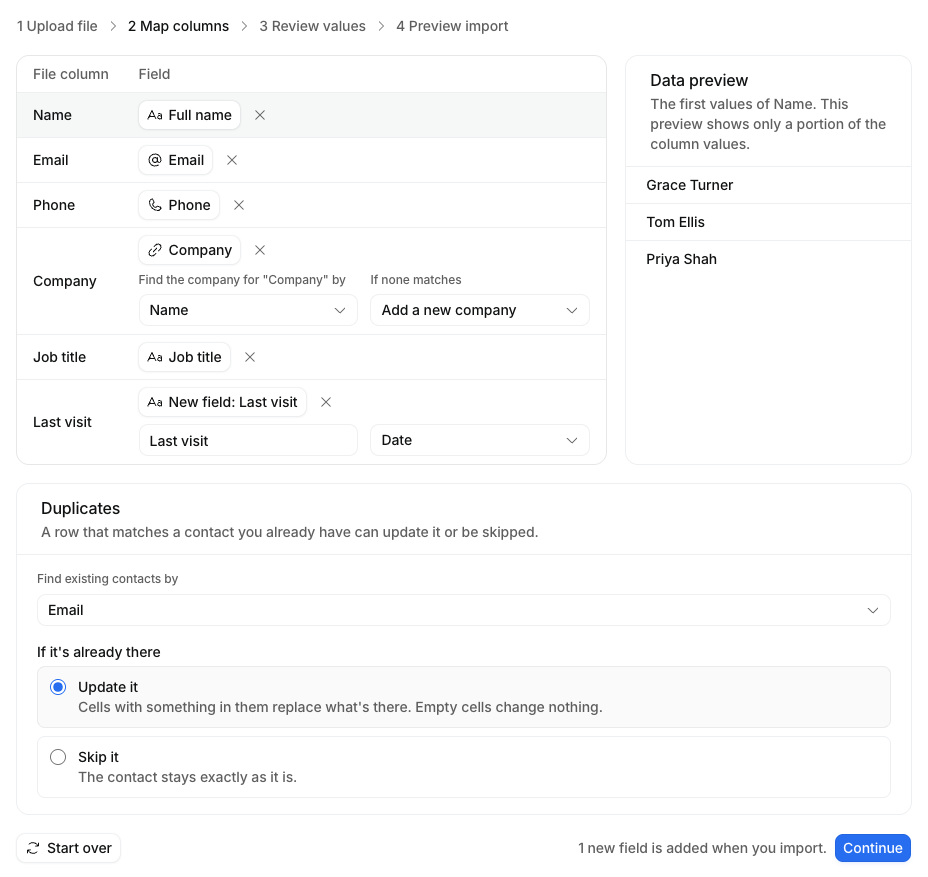
- Map columns. Emrg guesses which field each column belongs in. Check its guesses, remove the field (×) from columns you don't need, or, if you're an owner or admin, choose New field… in a column's field list to keep it as a field of its own.
- Under Duplicates, choose how to find records you already have. For contacts, Find existing contacts by email is the usual choice (website for companies). Then choose what happens if a record is already there: Update it fills in what's in your file and leaves empty cells alone, or Skip it leaves the existing record as it is. Choose Continue.
- Review values lists each column's values and marks any that need a look, with the reason. Choose Continue.
- Preview import counts the records that will be created, updated and skipped, and any rows that can't be imported. Nothing is saved yet. Choose Start import.
You can also bring in a contact list while you set up your workspace. That shorter import takes up to 5,000 people, skips anyone whose email is already there, and lists the columns it didn't bring in. To keep those columns, use the full importer above.
Read the results
When it finishes, Emrg shows how many records were added, updated and skipped, and lists each row it couldn't import with the reason, such as Row 14 and an email that isn't valid. Row 1 is your header row, so the numbers match your spreadsheet. Fix those rows in your file and import just them again.
Undo an import
Open the import from Imports and choose Roll back this import. It removes what that import added and puts back what it changed. Changes people or workers made since then are kept.
How many records a workspace holds
The free plan holds 50,000 records. If an import would go past your plan's limit, the rows that don't fit are listed as not saved. Leads from your forms, booking pages and website chat still come in.
Importing contacts doesn't sign them up for your newsletters. Bulk email is coming soon, and when it opens it will only go to people who agreed to hear from you, such as through one of your forms.
Still stuck?
Email support@emrg.ai from the address you use for Emrg, with the name of your workspace, and a person will reply.